Who it's for: Anyone who would rather buy a good design than build one, and anyone whose designs are good enough to sell.
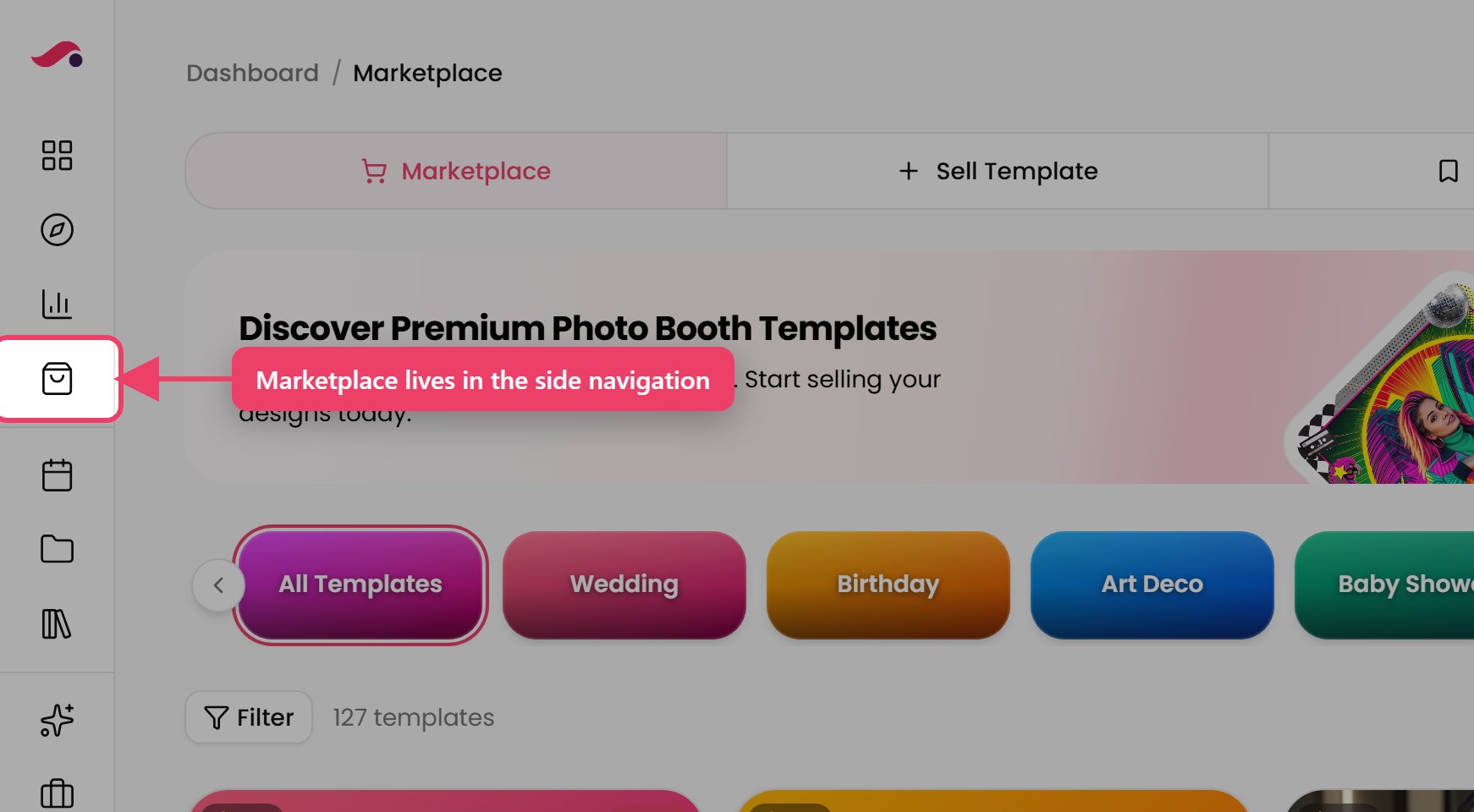
Where to find it: Side navigation → Marketplace
The tabs along the top
| Tab | What it is |
|---|---|
| Marketplace | Browse and buy |
| Sell Template | Put something of your own up for sale |
| My Purchases | Everything you have bought |
| My Items | Manage what you have listed |

Note
If you only see Marketplace and My Purchases, your account cannot sell yet. Ask your company administrator to turn selling on. You can still buy and use everything.
Tip
Look here before building something from scratch for a common occasion. A wedding or birthday design that someone has already refined and sold fifty times is usually better than your first draft.
| Type | What it is | Buy it when |
|---|---|---|
| Full Experience | The whole journey — the screens guests see, the styling and the output together | You want to run something new without designing it |
| Template | The photo layout — the thing the guest takes away | Your journey is already right and you only need a better-looking output |
| Custom Prompt | A written AI prompt, used by an AI filter or an AI video | Your AI filter or AI video works, but the results are not landing |
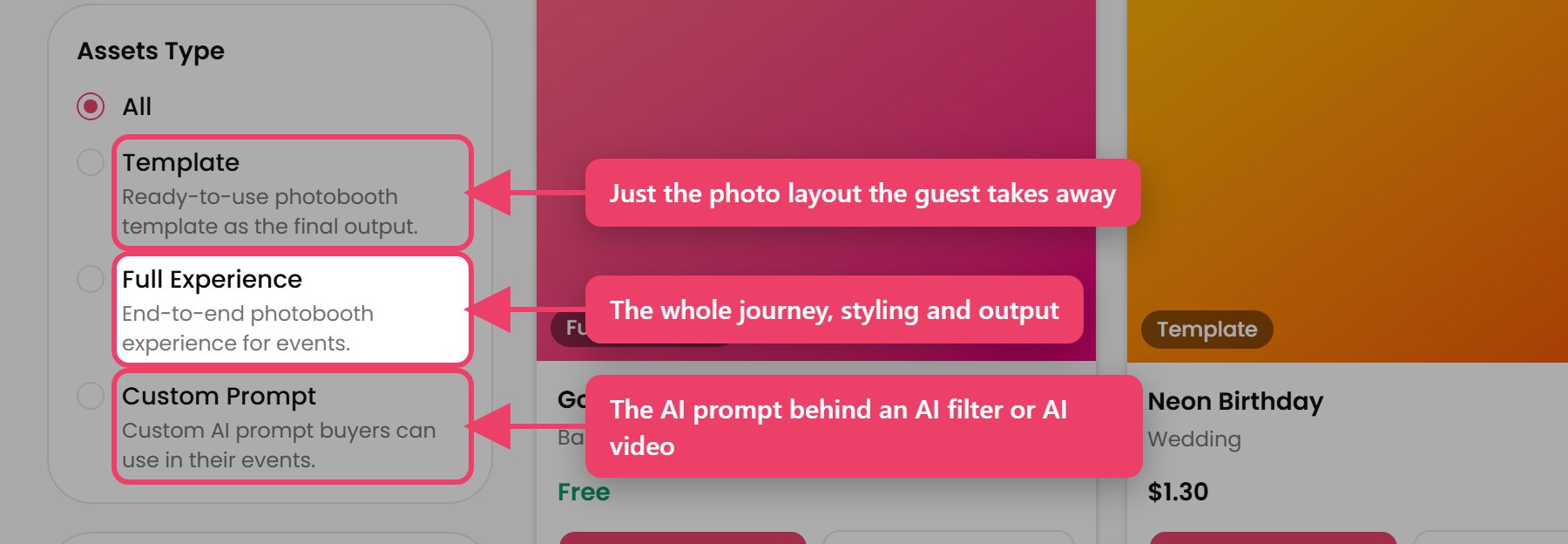
You can sell all three. You sell things you have already built in Pictor — a preset, a template or a prompt that is already in your account. You cannot create something new from inside the Marketplace.
Note
Only a Full Experience gives you a Create Event button after you buy it. See article 9.
To buy
- Access to the Marketplace in your side navigation
- A payment card, for anything that is not free
That is all. There is nothing to set up.
To sell
- Permission to sell — ask your company administrator. The Sell Template and My Items tabs appear once you have it.
- A connected Stripe account — see article 11; this is how you get paid.
- Something to sell — a preset, template or AI prompt already built in your account.
Tip
Do the Stripe connection first. Building a listing and then finding you cannot be paid for it is the wrong order.
Steps
- Go to Marketplace.
- Pick a category tile, or leave All Templates selected. Use the arrows either side to scroll along the row.
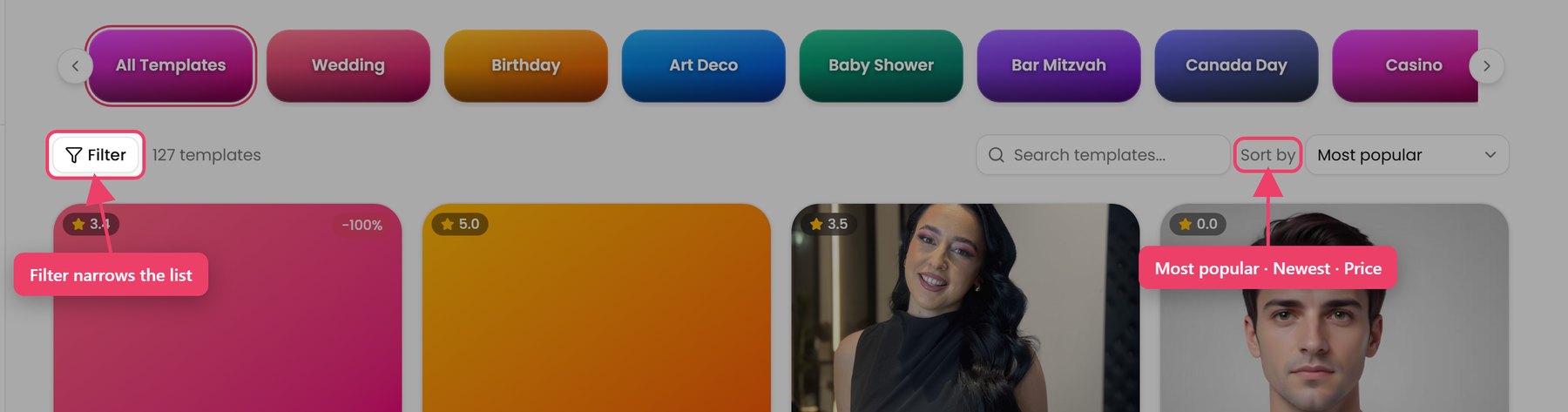
- Type in Search templates..., or press Filter to narrow the list.
- Choose a Sort by order.
- Press Load more at the bottom for more results.
- Press View on anything you want to look at properly.
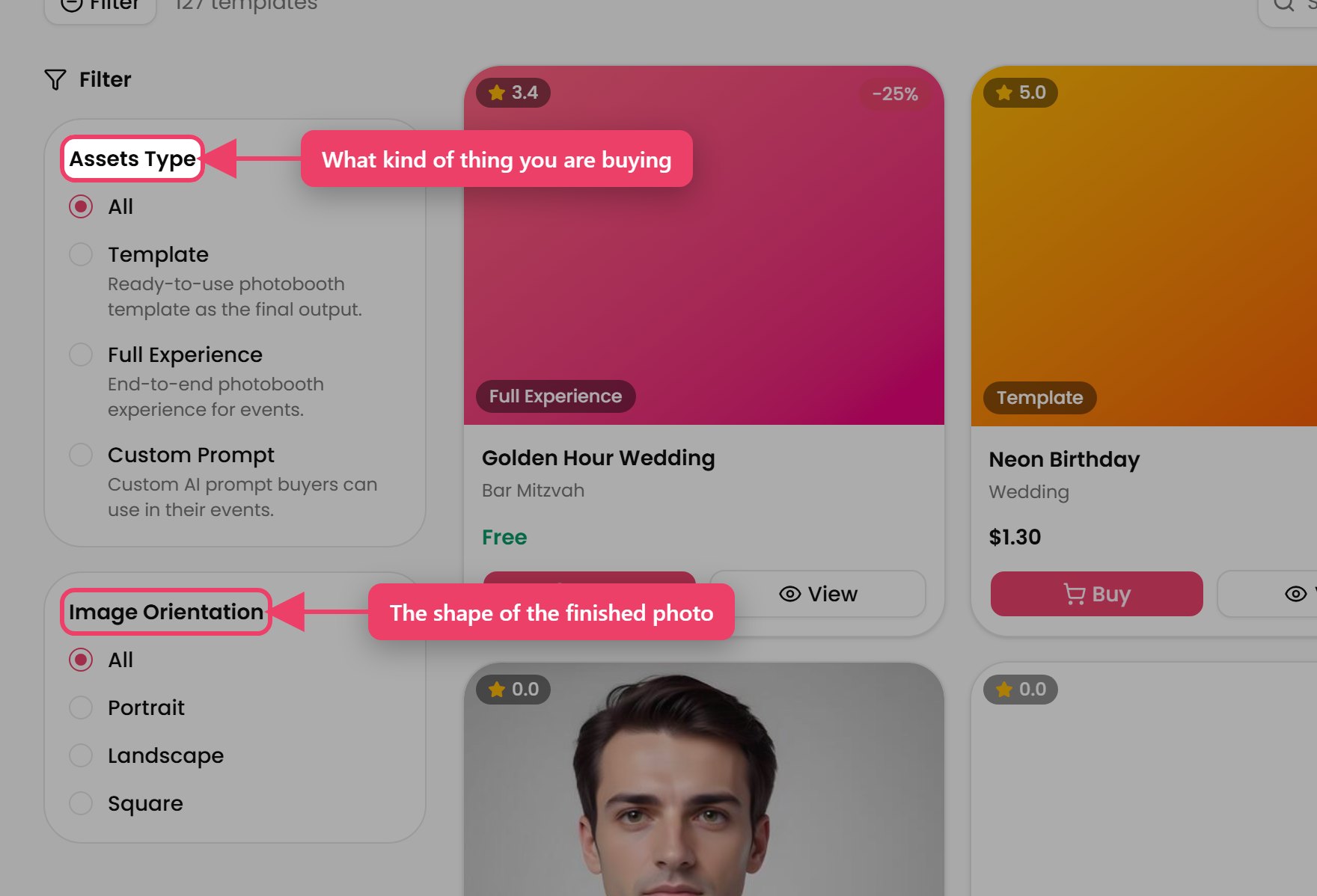
The filters
Assets Type — All, Template, Full Experience or Custom Prompt
Image Orientation — All, Portrait, Landscape or Square
The sort orders
Most popular · Newest · Price: low to high · Price: high to low
Tip
Filter by orientation first. A landscape design is no use on a portrait booth, and it is the one thing you cannot change after buying.
| On the card | What it means |
|---|---|
| A star and a number, top left | The average rating |
| A type label, bottom left | Whether it is a Template, a Full Experience or a Custom Prompt |
| -25% badge, top right | A discount is running. Hover it to see when it ends |
| Your listing, top right | Your own company listed this, so there is no Buy button |
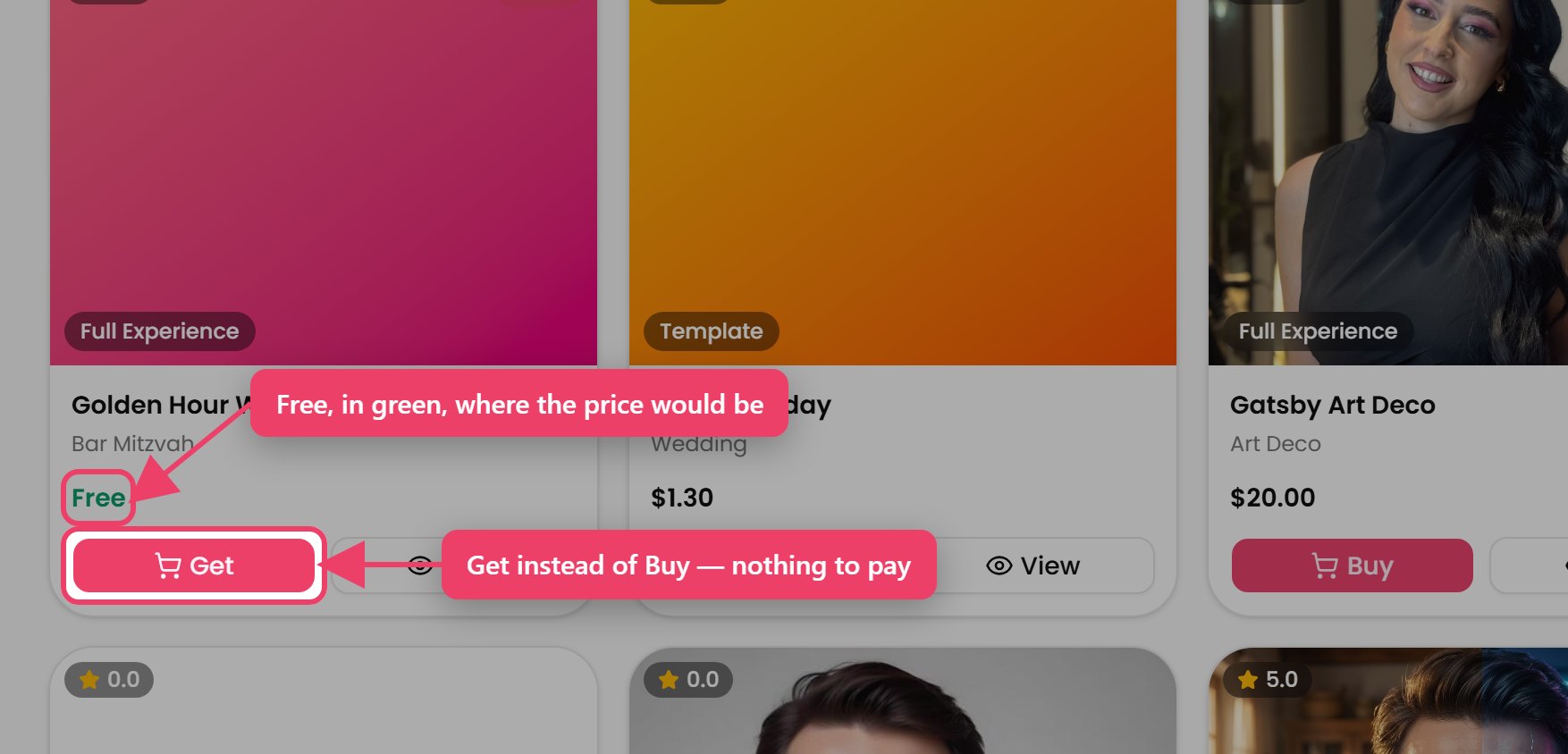
| Free, in green | No payment needed. The button reads Get instead of Buy |
| A price with a line through it | The old price, before the discount |
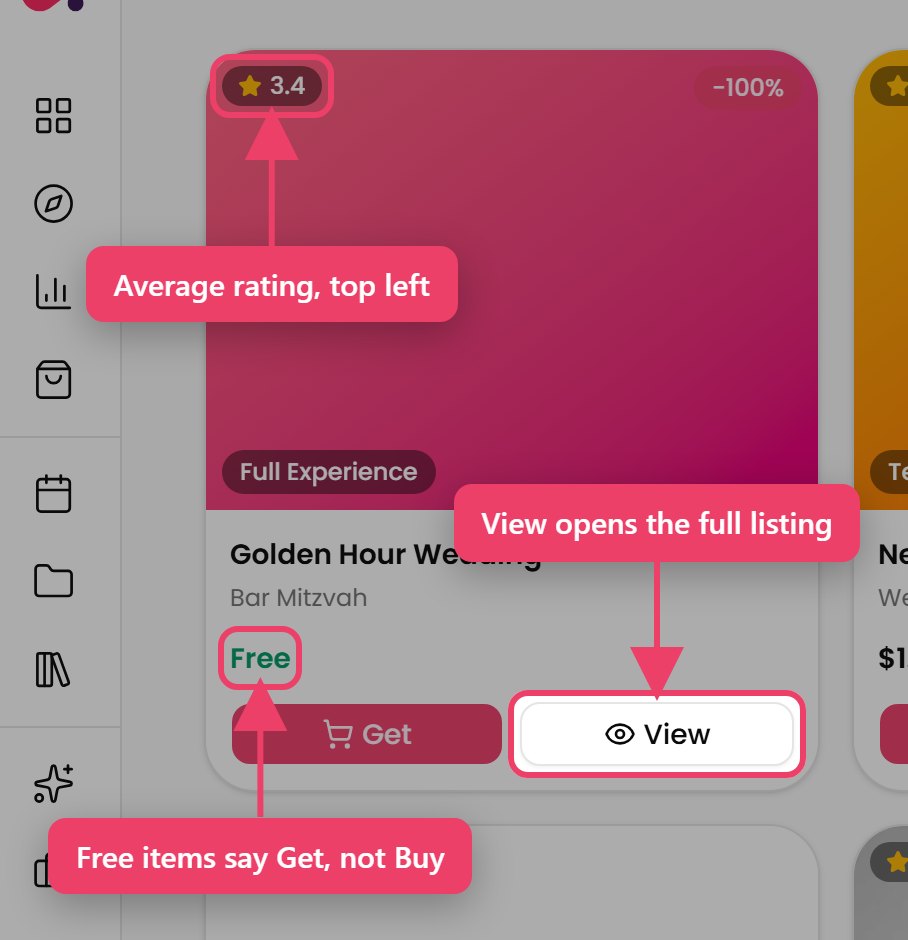
The count above the grid reads "18 templates". Nothing matching shows "No templates match your filters."
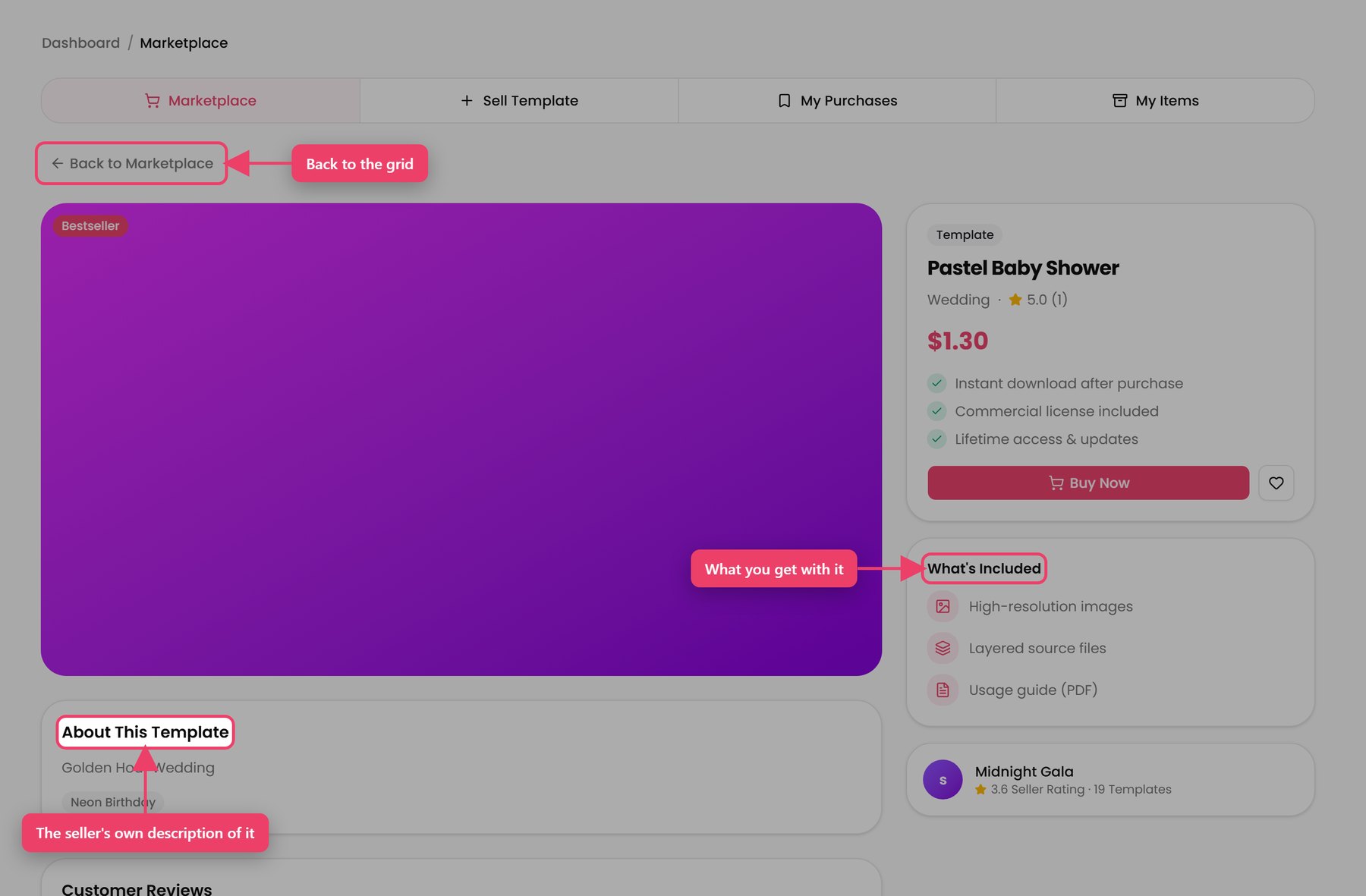
What is on it
- A large image, with smaller thumbnails underneath if the seller added more
- About This Template — the seller's description and tags
- Customer Reviews — real reviews from buyers, or "No reviews yet."
- The price
- What's Included
- The seller's name, their rating and how many listings they have
- A Bestseller badge on strong sellers
Back to Marketplace returns you to the grid.
Steps
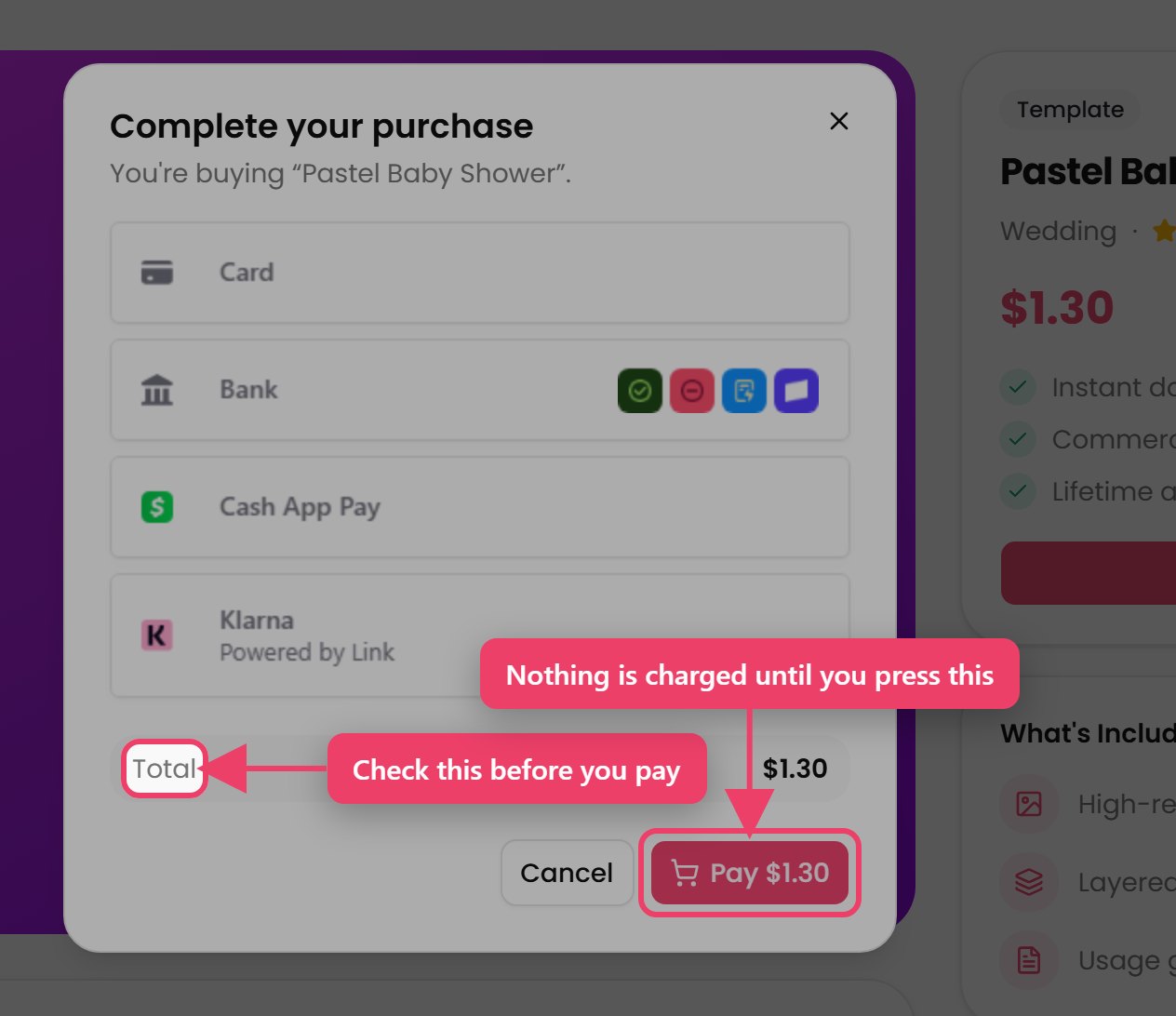
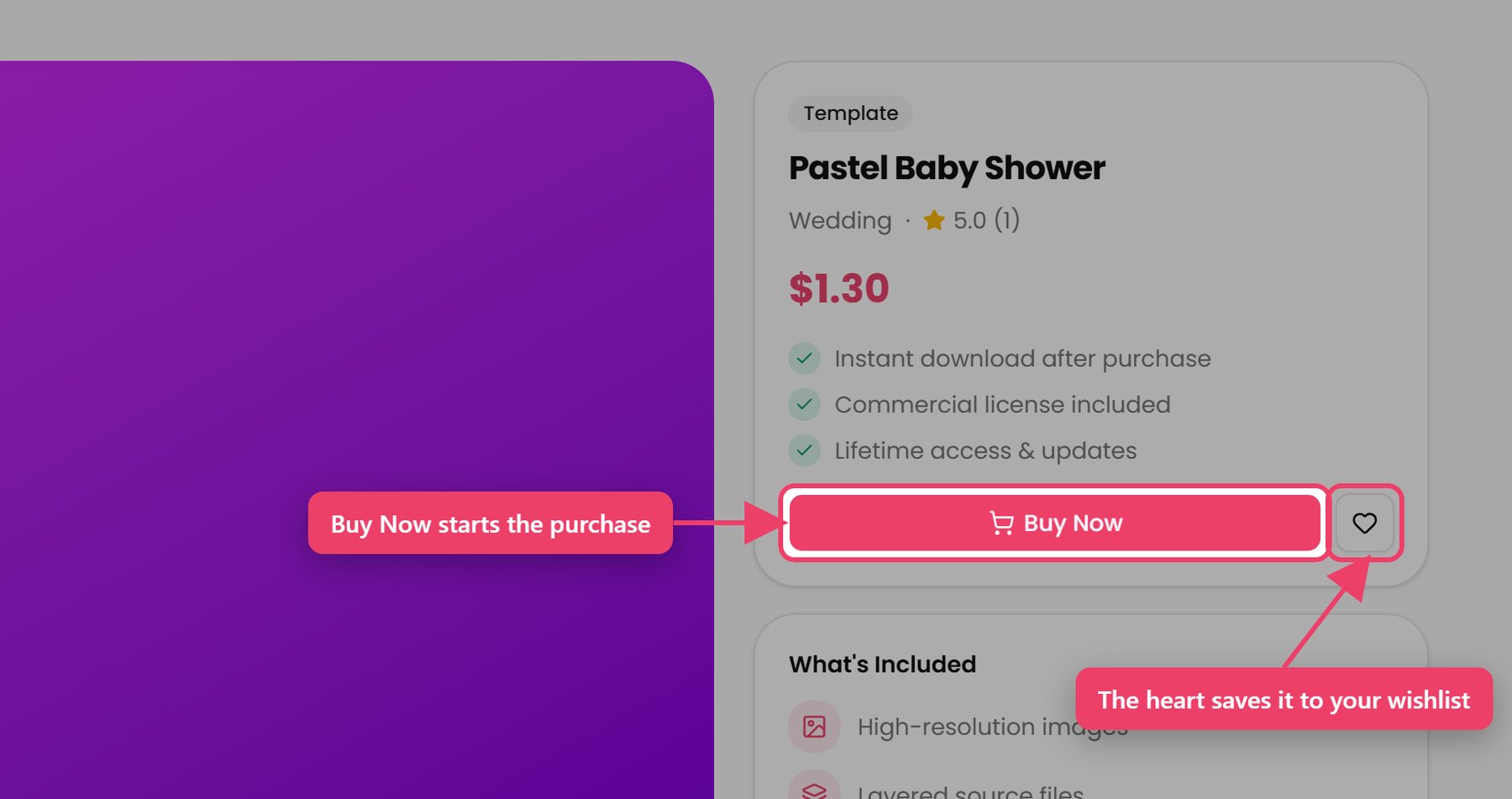
- Press Buy on a card, or Buy Now on the listing.
- You see "Preparing secure checkout…" while the payment form loads.
- Check the Total.
- Enter your card details and press Pay.
- You see "Purchase complete! Your template is now in My Purchases."
- The page moves to My Purchases. A message reads "Finalizing your purchase…" for a few seconds while your copy is prepared.
Note
You cannot buy your own company's listings.
Tip
Check My Purchases before buying something that looks familiar. It is easy to buy the same design twice across a year.
If it does not work
| Message | What it means |
|---|---|
| "Payment could not be completed. Please try again." | The card was declined or the payment was interrupted. Nothing was charged |
| "Could not start the purchase. Please try again." | Checkout could not open. Nothing was charged |
| "Checkout is not available right now. Please try again later." | Payments are not set up for this site. Contact support |
Steps
- Press Get on the card, or Get for Free on the listing.
- You see "This item is free — add it to your account instantly, no payment needed."
- Press Add to my purchases.
Important
A free item is added as soon as that box opens. Pressing Cancel closes the box but does not remove the item. If you opened it by mistake it is already in My Purchases. Nothing is charged, and it does not affect any of your events until you use it.
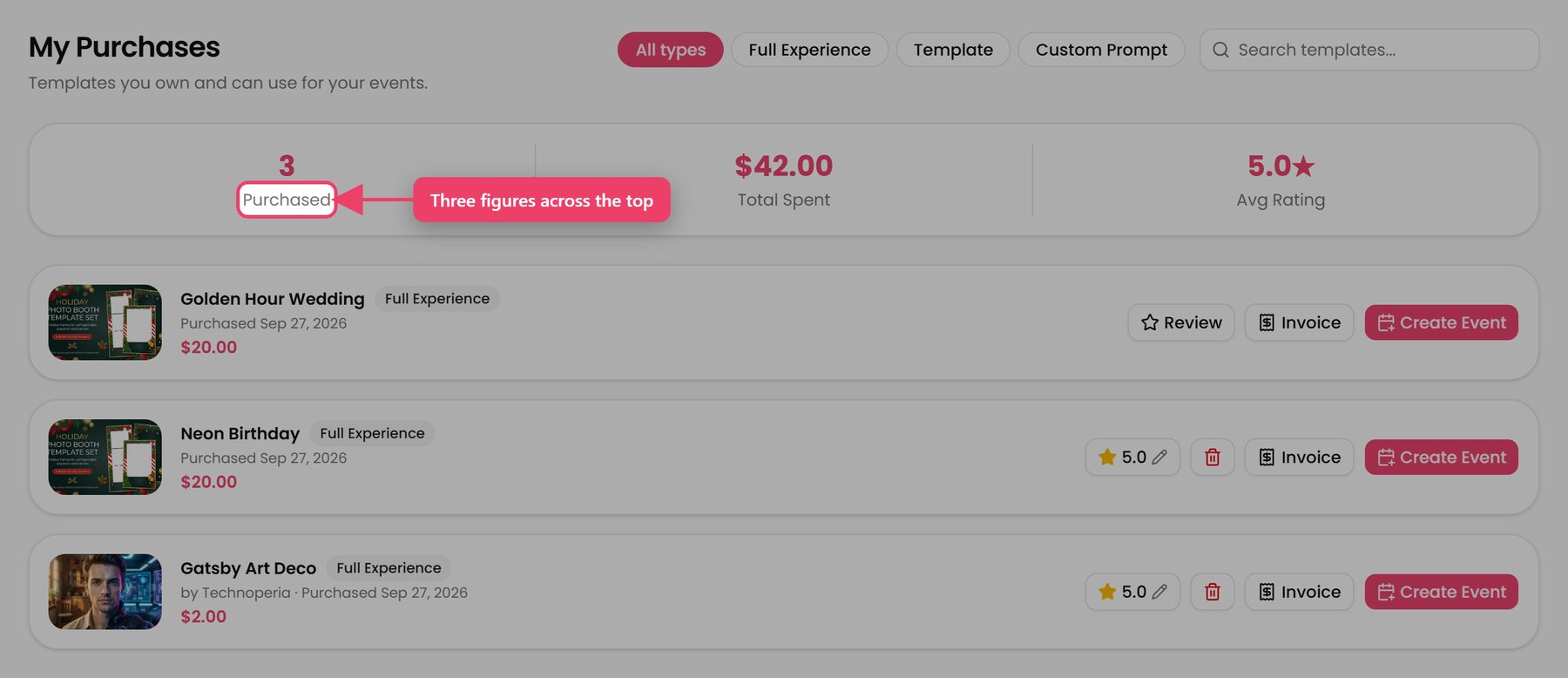
Three figures sit across the top: Purchased, Total Spent and Avg Rating.
Steps
- Go to Marketplace → My Purchases.
- Narrow the list with the type buttons, or search by name.
- Press Load more for older purchases.
Creating an event from a purchase
- Press Create Event on the row.
- Fill in the event name, client, optional project, and the start and end dates.
- Press create. You land on the new event, ready to configure.
Note
Create Event is greyed out until your copy of the experience is ready. If it is still greyed out on a Full Experience after a few minutes, contact support.
Buying does not add anything to an event by itself. You still choose where to use it.
A purchase can carry paid features. If using it raises your event's plan tier, the New License Features dialog tells you before saving — see Billing and Licences.
Tip
Try a new purchase on a test event and run a Simulation test before a client booking. It is somebody else's design, and it may expect screens your journey does not have.
Your invoice
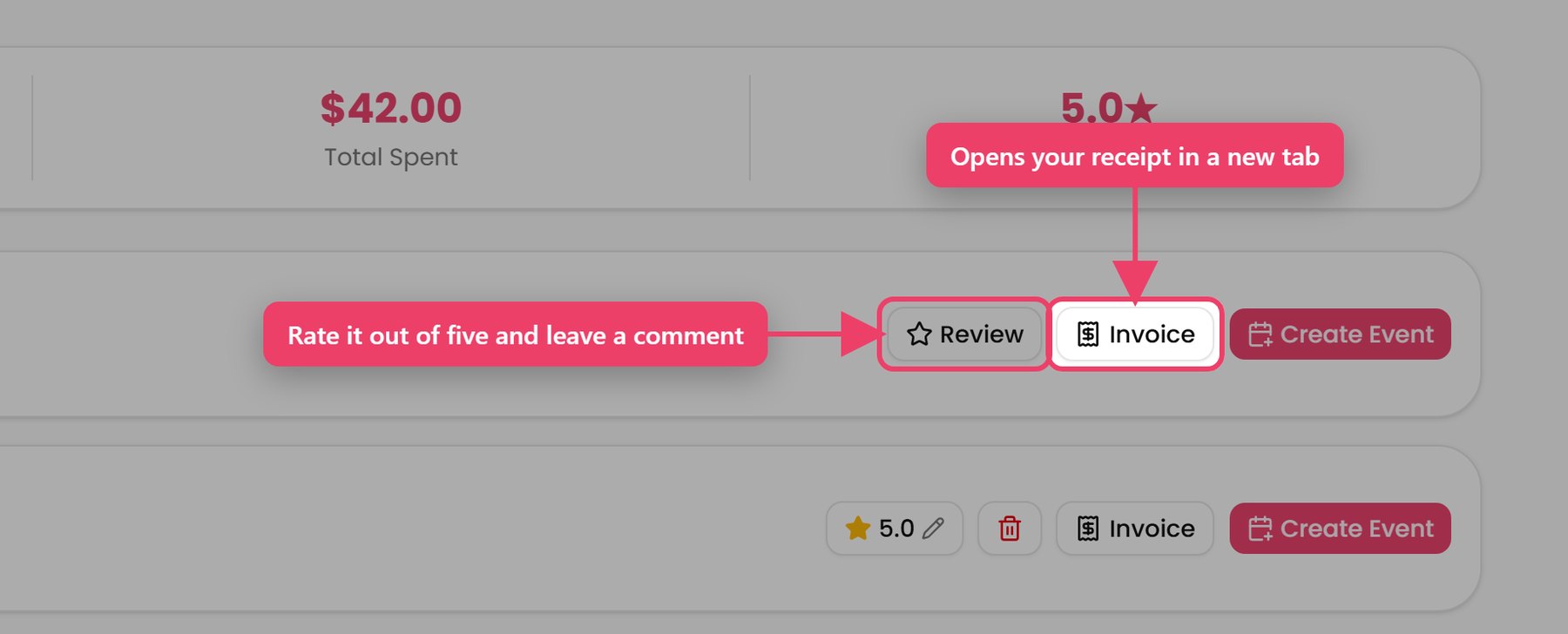
Press Invoice to open your receipt in a new tab.
Note
Invoice is greyed out when there is nothing to show. Hover it to find out why — either the purchase was free, so no invoice was issued, or the receipt is not ready yet.
Leaving a review
Who it's for: Anyone who has bought the item. You cannot review something you have not bought.
- Press Review on the row.
- Pick a rating from one to five stars. This is required.
- Write a comment. This is optional.
- Press Submit review.
Changing or deleting your review
Once you have reviewed something, the Review button is replaced by your star rating with a pencil on it, plus a bin.
- Press the rating to reopen it and Save changes.
- Press the bin to delete it. You are asked to confirm.
Note
One review per purchase. Reviewing again means editing the review you already left.
Tip
Say what the design assumed about your setup. "Beautiful, but it expects a survey screen you may not have" helps the next buyer more than five stars and nothing else.
Who it's for: Anyone who wants to sell. Do this before building your first listing.
Steps
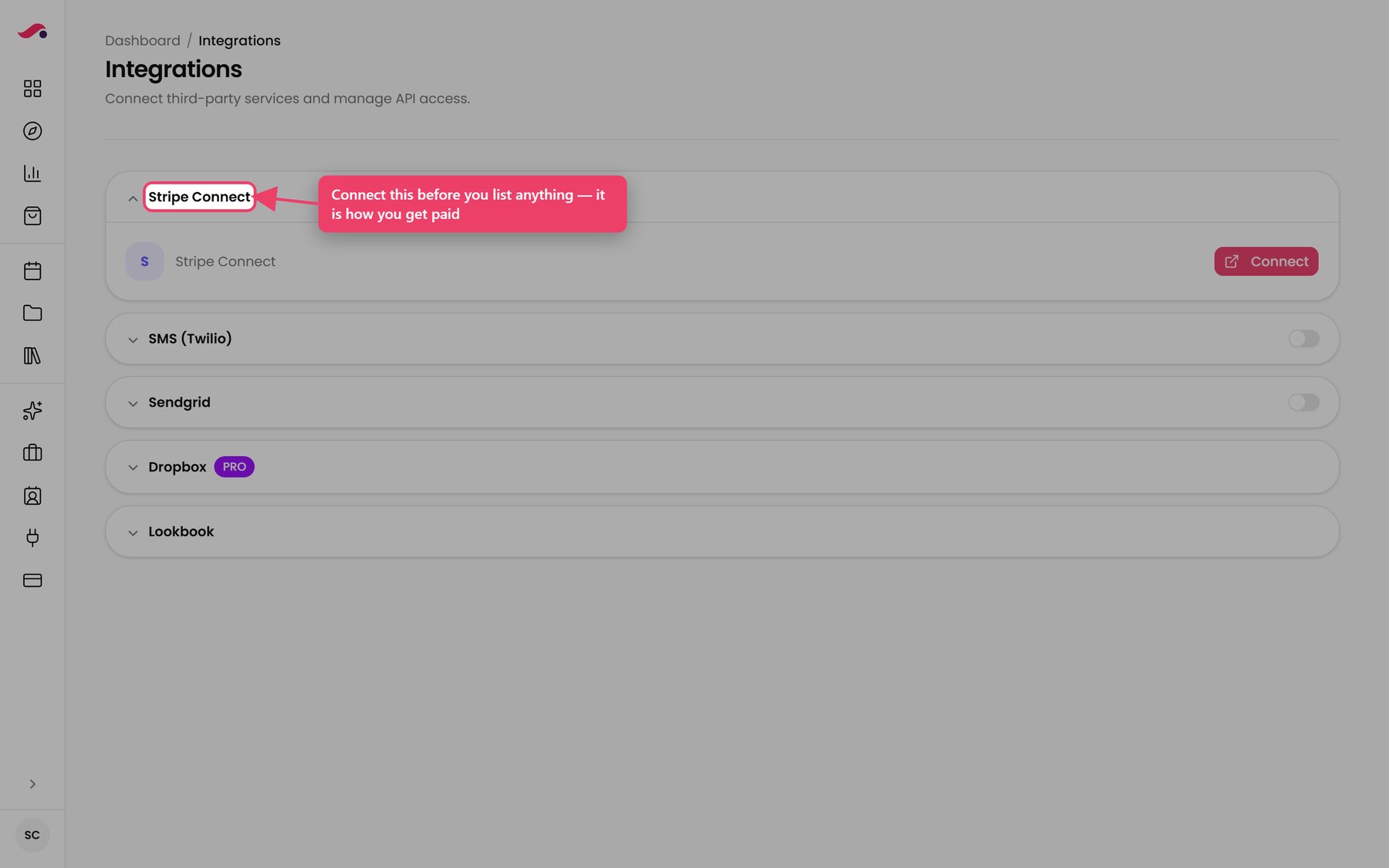
- Go to Account Settings → Integrations.
- Find the Stripe Connect card.
- Press Connect. Stripe opens in a new tab.
- Complete Stripe's form — your business details and where you want to be paid.
- Come back to Pictor. The card now shows "You are successfully connected with Stripe" with a green tick, and your business name and email underneath.
Steps
- Go to Marketplace → Sell Template.
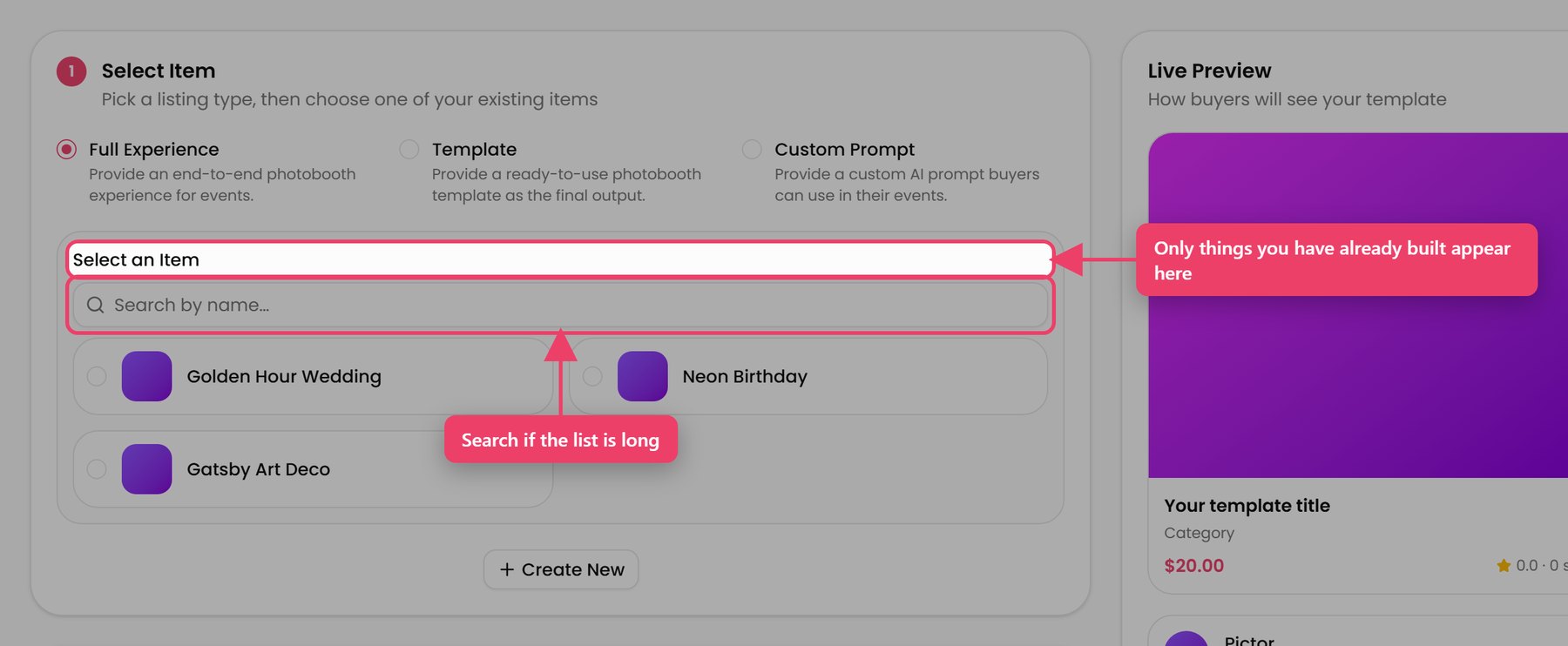
- Step 1 — Select Item. Choose Full Experience, Template or Custom Prompt. Then pick one of your existing items from the list underneath. Search by name if the list is long.
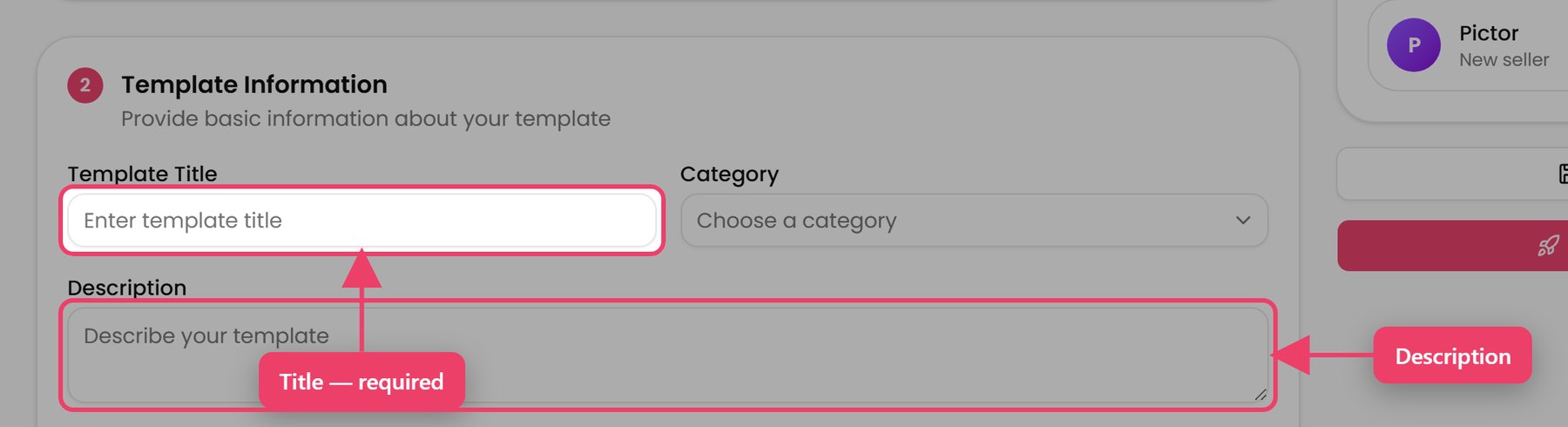
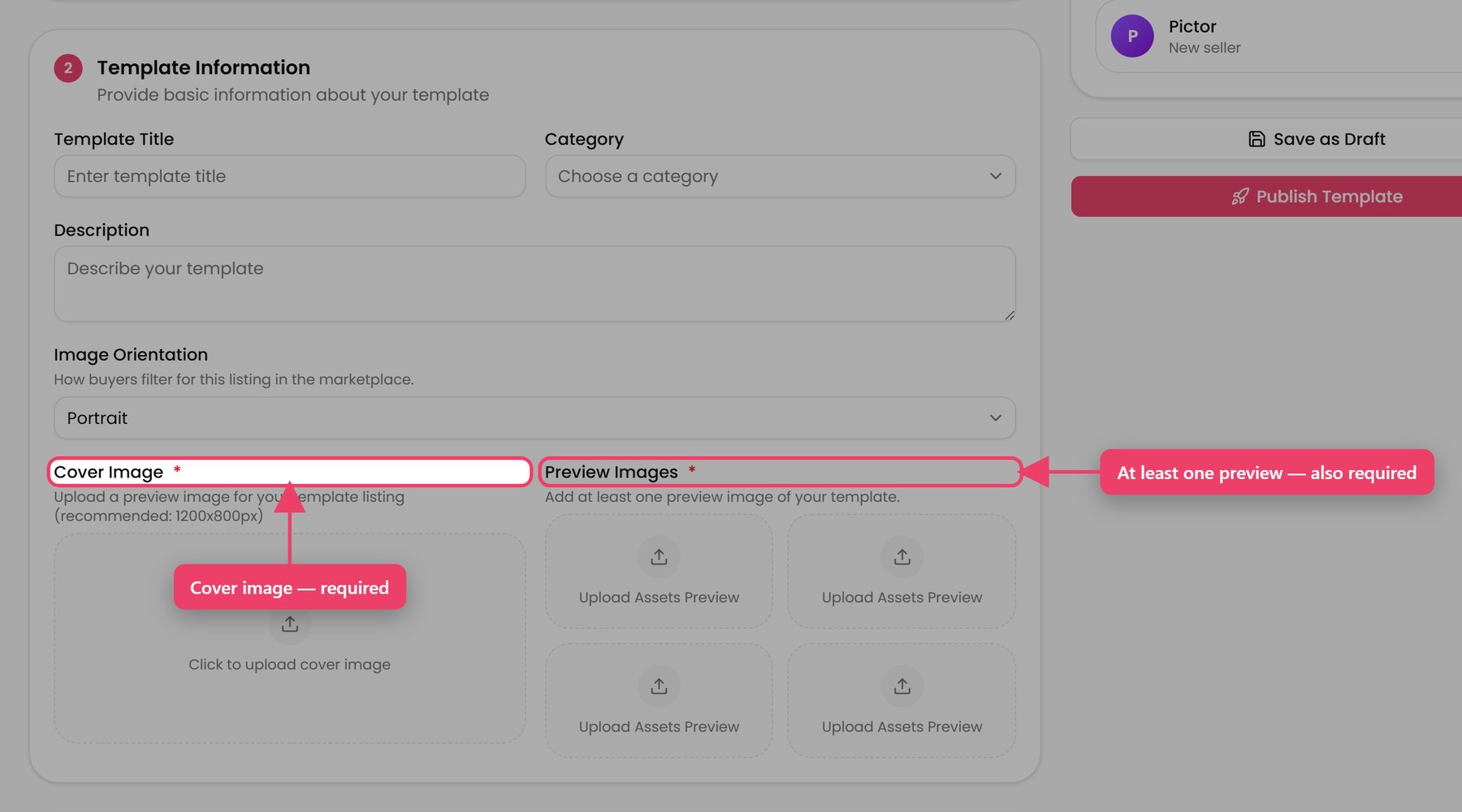
- Step 2 — Template Information. Add a title, choose a Category, write a Description, set the Image Orientation, then add a Cover Image and at least one Preview Image. Images come from your asset library.
- Step 3 — Pricing Details. Set your price, and add a discount if you want one — see articles 13 and 14.
- Press Publish Template to make it live, or Save as Draft to come back to it.
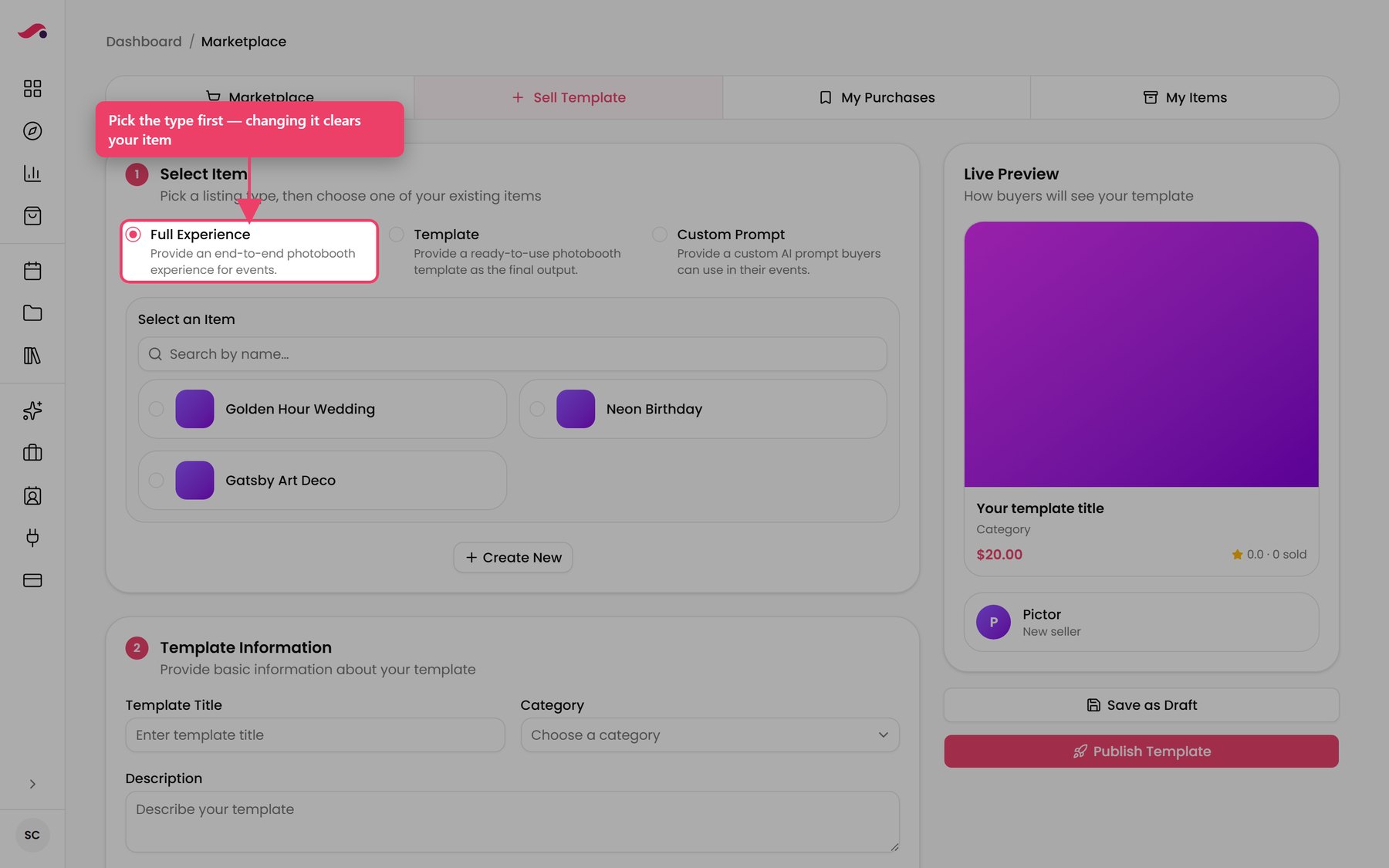
The panel on the right shows a Live Preview of how buyers will see your card.
Tip
Picking an item fills in the title and cover image for you. Anything you typed yourself is left alone.
For a Full Experience, Create New takes you to Presets to build one. Come back to Sell Template afterwards to list it.
Note
Changing the listing type clears the item you picked, so choose the type first.
An item can only be listed once. While a listing exists for it, that preset, template or prompt disappears from Select an Item — if the list is empty and says "You don't have anything to list yet.", check My Items before assuming something is broken.
The image boxes open your asset library. You can pick something already there, or press Upload inside that box to add a new file — it goes into the library first, then you select it and press Use.
What you must fill in
A listing will not save — not even as a draft — without all five of these:
- A title
- A category
- An item selected
- A cover image
- At least one preview image
You will see a message naming whichever one is missing.
Tip
List the design you have already sold to several clients. Something proven across real bookings needs no extra work to become a product.
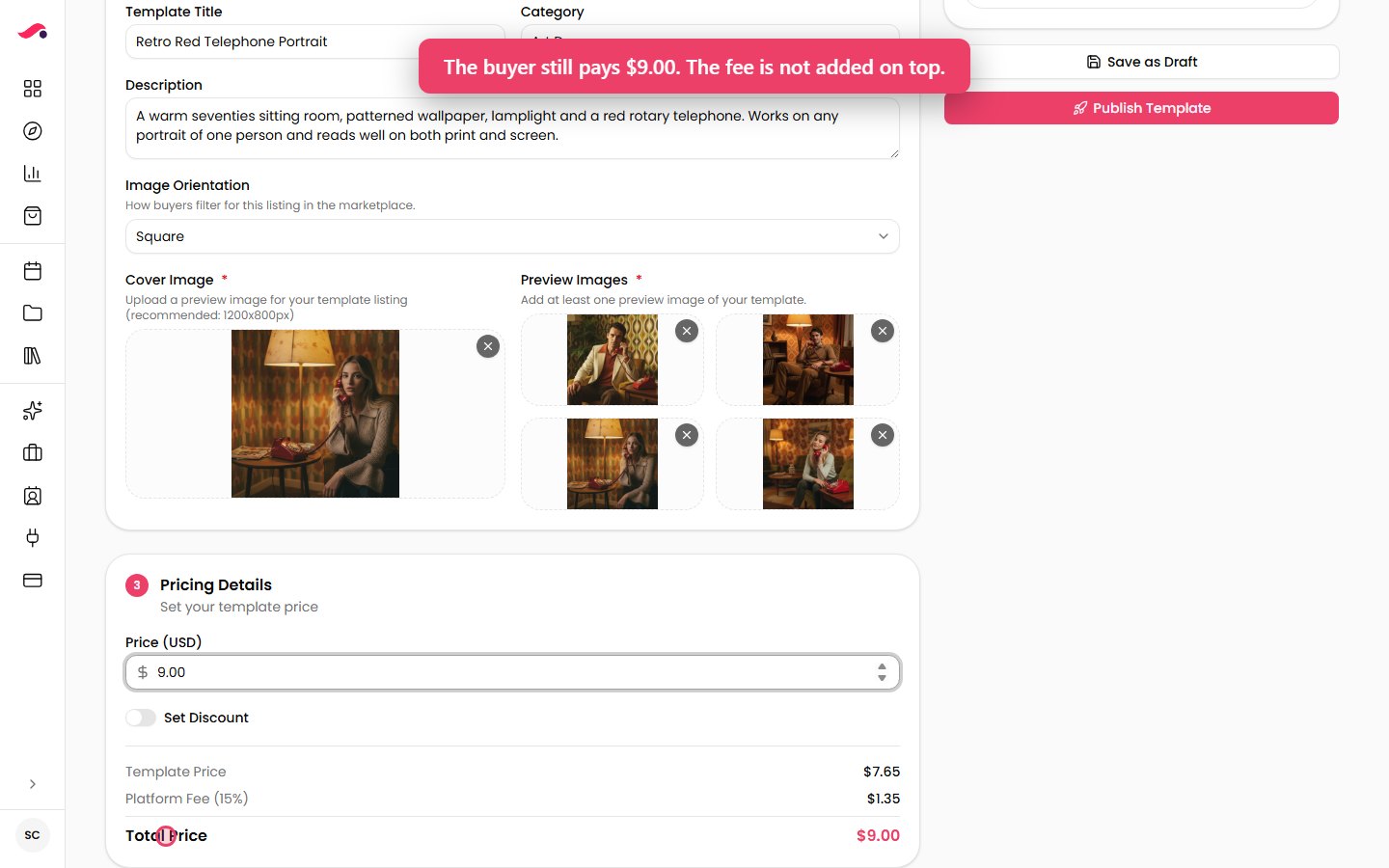
Type your price in Price (USD). Underneath, four lines show how it breaks down.
| Line | What it is |
|---|---|
| Template Price | What you keep |
| Discount | What comes off for buyers while a discount is running |
| Platform Fee | Pictor's percentage |
| Total Price | What the buyer pays |
Important
The price you type is what the buyer pays. The platform fee comes out of it, not on top of it. On a $20 listing with a 15% fee, the buyer pays $20 and you keep $17.
The fee percentage shown is the one that applies to your company. Some companies have a negotiated rate.
Tip
Leave the price at 0 to give something away. The listing then shows as Free and buyers get a Get button instead of Buy.
Steps
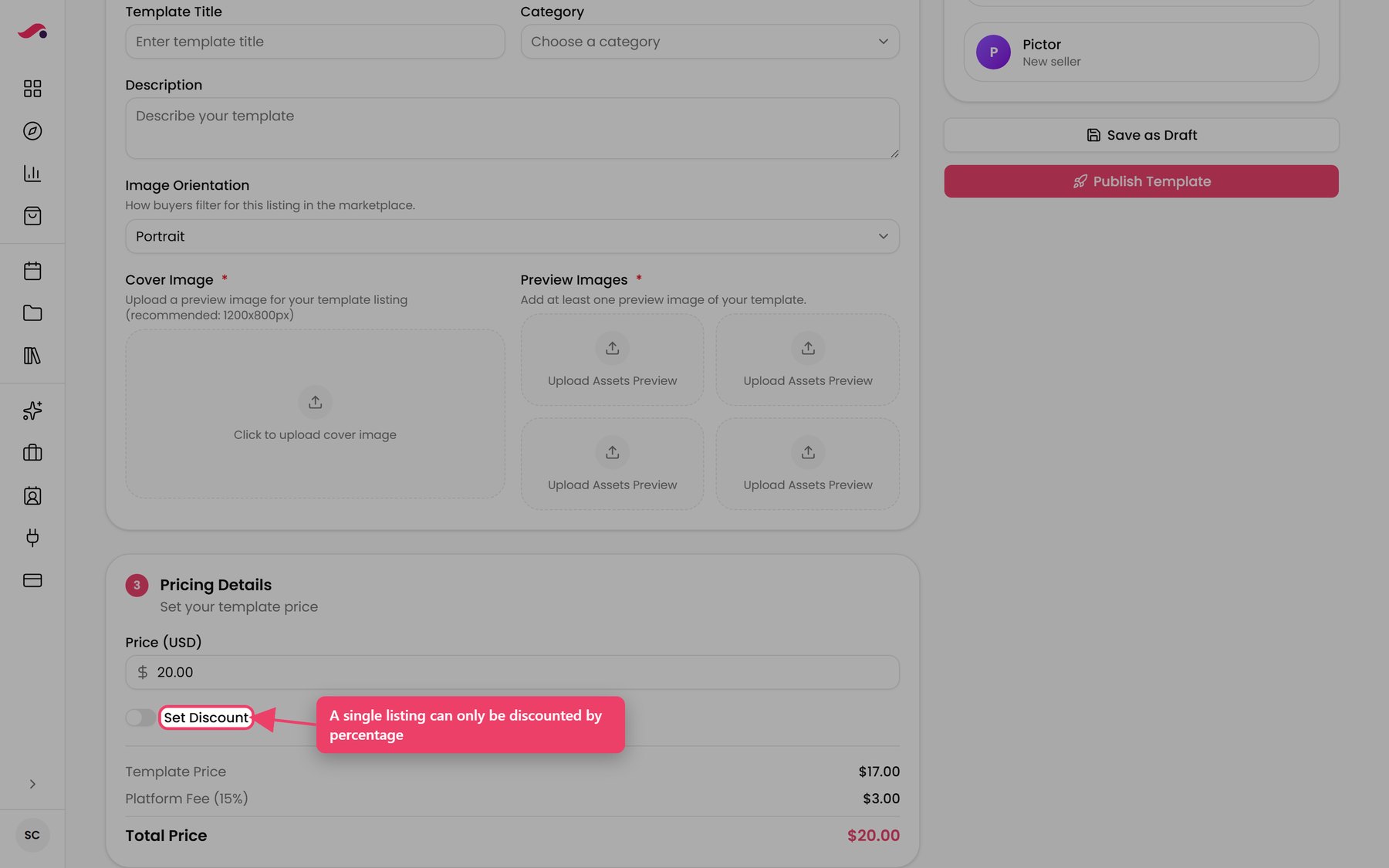
- In Step 3 — Pricing Details, switch on Set Discount.
- Pick a Start Date and an End Date.
- Choose one of the quick amounts — 10, 15, 20, 25, 30 or 50% — or press Custom and type your own.
- Publish or save as usual.
The rules
- A discount on a single listing is always a percentage. Fixed amounts are only available when you discount several listings at once — see article 17.
- You need both a start date and an end date.
- The start date cannot be in the past.
- The end date must be after the start date.
- A discount runs to the end of its last day.
Tip
A discount with an end date creates a reason to buy now. An open-ended low price does not.
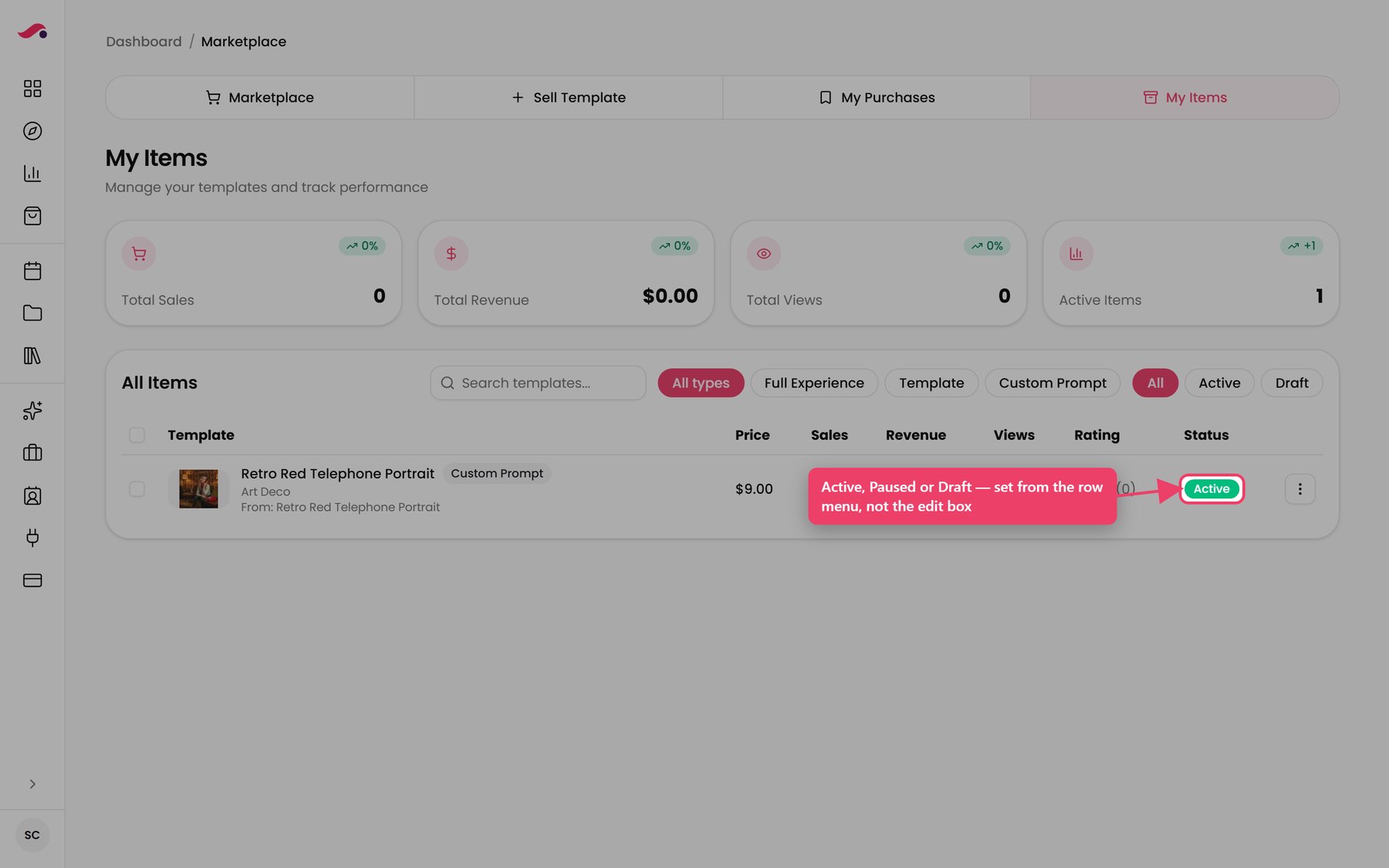
| Status | What it means |
|---|---|
| Active | On sale. Buyers can find it and buy it |
| Paused | Was live, temporarily withdrawn. Buyers cannot see it |
| Draft | Saved but never published. Buyers cannot see it |
Changing the status
Press the ⋮ button at the end of the row in My Items:
| Action | Appears when |
|---|---|
| Publish | The listing is a Draft |
| Pause | The listing is Active |
| Resume | The listing is Paused |
Note
You cannot change the status from the Edit Listing box. Use the ⋮ menu.
Tip
Pause rather than delete when you are only taking something down for a season. Deleting is permanent and takes the reviews with it.
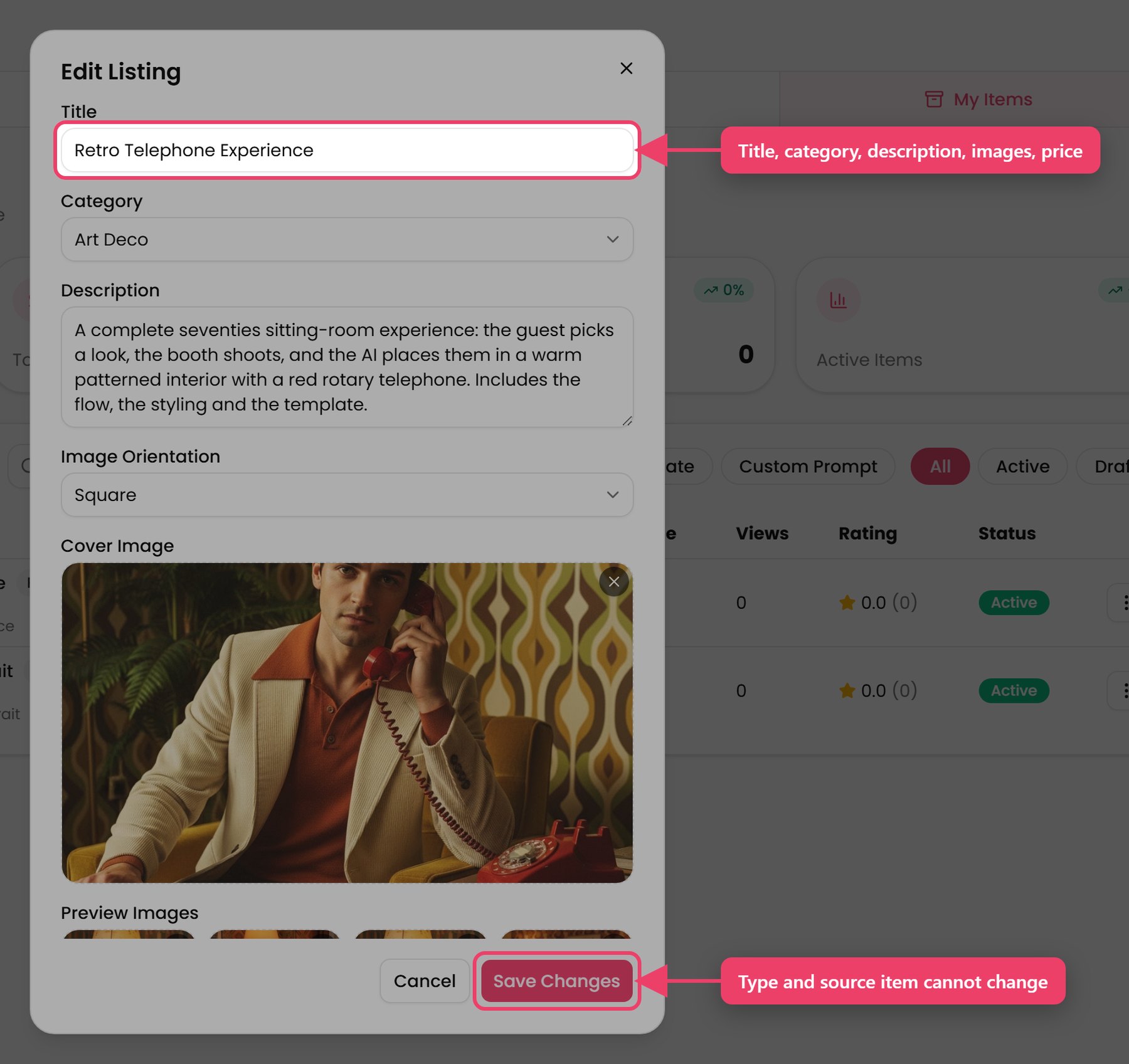
Steps
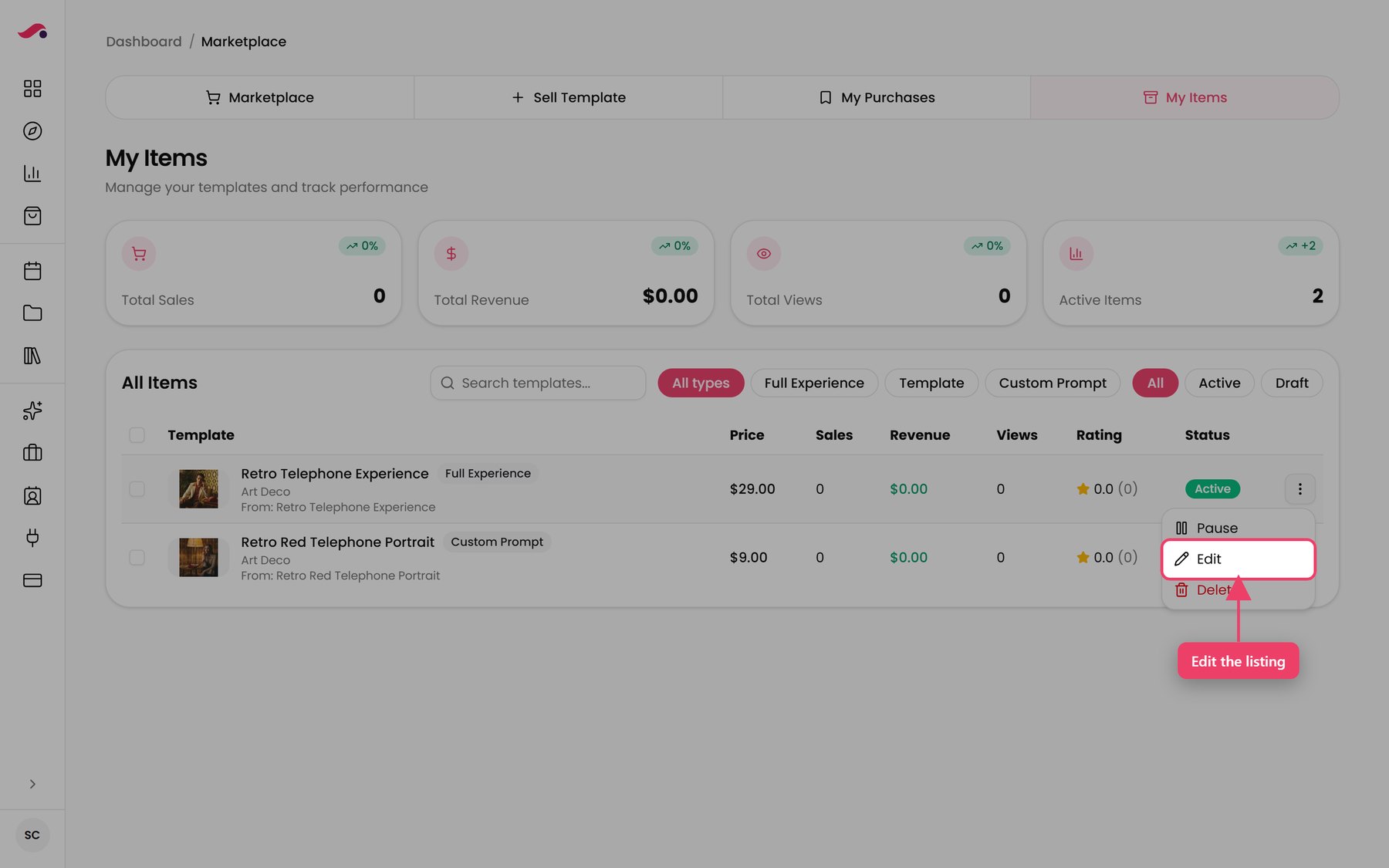
- Go to Marketplace → My Items.
- Press the ⋮ button at the end of the row and choose Edit.
- Change the title, category, description, orientation, images, price or discount.
- Press Save Changes.
Note
You cannot change a listing's type, or the item it was made from. Those are fixed when you create it. If you picked the wrong one, delete the listing and create it again.
On a listing that is Active, a description and a cover image are required before you can save. On a draft they are not.
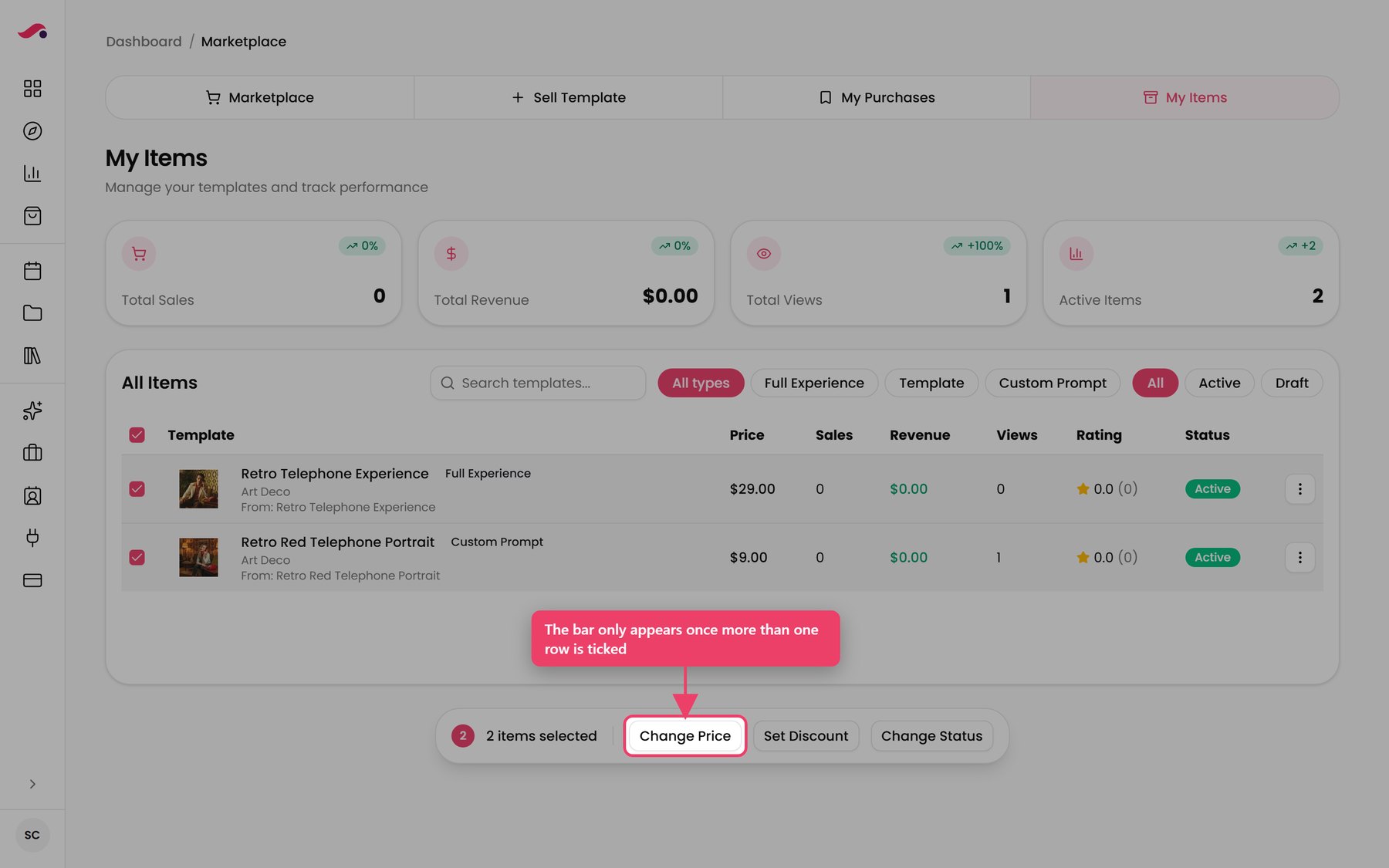
Steps
- Go to My Items and tick the checkbox on each row you want.
- A bar appears at the bottom of the page.
- Choose Change Price, Set Discount or Change Status.
- Set the value and press Apply.
Note
The bar only appears when you have selected more than one listing. For a single listing, use the ⋮ menu.
Bulk discounts
Set Discount is the only place you can give a Fixed Amount ($) discount instead of a percentage. There are quick buttons for 10, 15, 20, 25, 30 and 50%.
Note
A fixed amount cannot be equal to or larger than a listing's price. If any listing you selected is too cheap, you are told which ones and nothing is applied — lower the amount or untick those rows.
Tip
This is the tool for a seasonal sale. Select everything, apply 30% with an end date, and it comes off by itself.
Four figures sit across the top, each with an up or down arrow.
| Figure | What it counts |
|---|---|
| Total Sales | How many times your listings have sold |
| Total Revenue | What you have earned |
| Total Views | How many times your listings have been looked at |
| Active Items | How many of your listings are live |
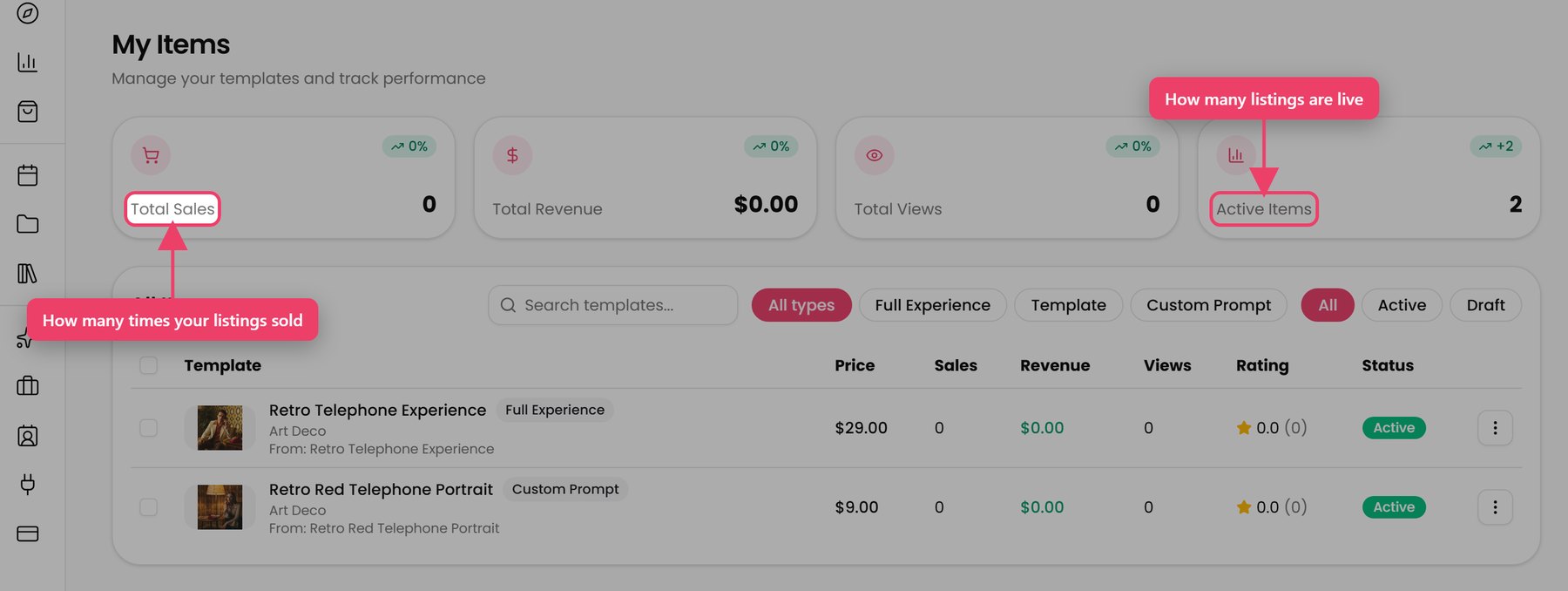
The table underneath shows the same for each listing individually — price, sales, revenue, views, rating and status.
Finding a listing
- Search by name
- Filter by type: All types / Full Experience / Template / Custom Prompt
- Filter by state: All, Active, Draft
- Press Load more for older listings
Note
There is no filter button for Paused listings. They appear under All.
Tip
Plenty of views but no sales usually means the price or the cover image, not the design. Views mean people found it; sales mean they were convinced.
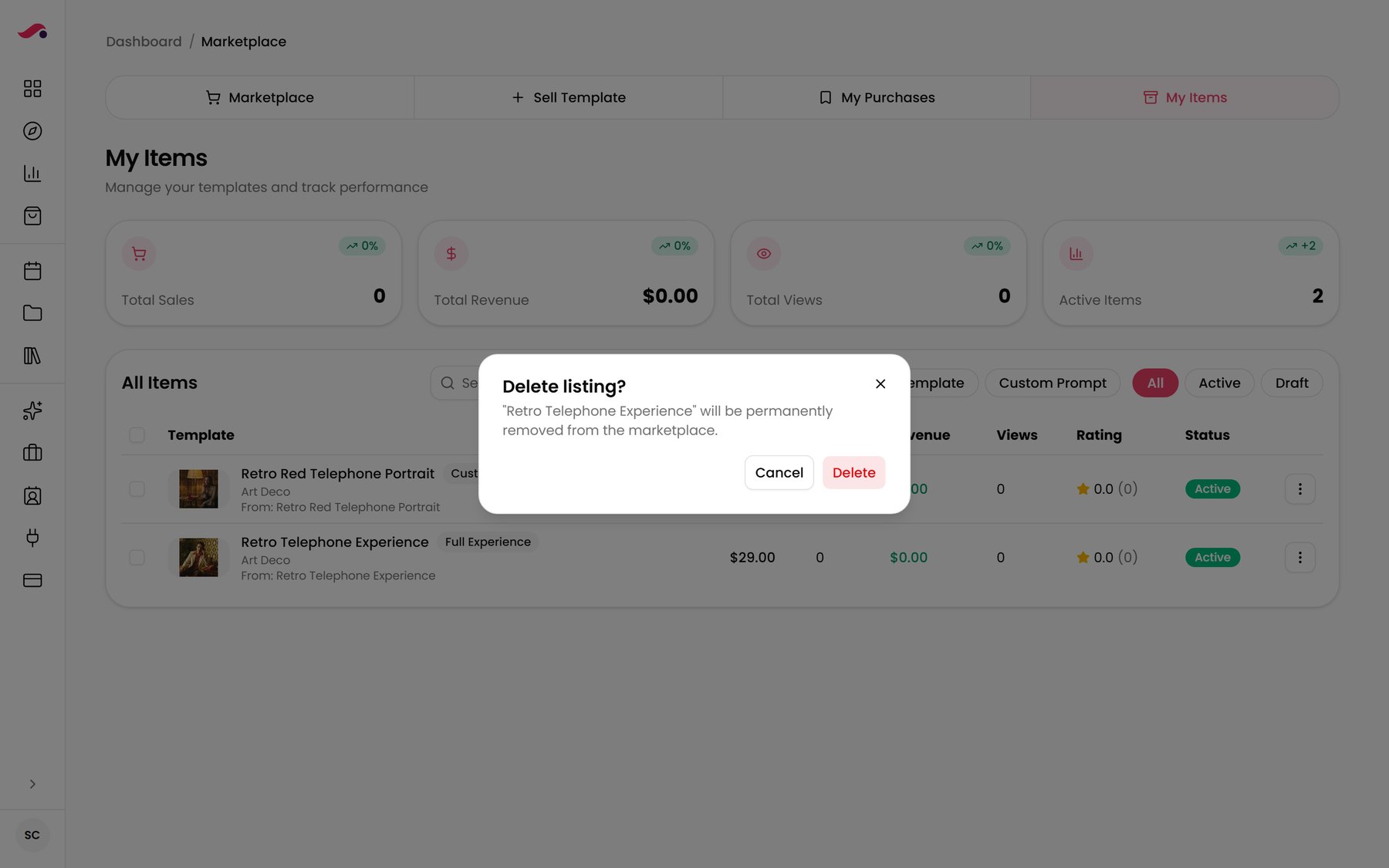
Steps
- Go to My Items.
- Press the ⋮ button at the end of the row and choose Delete.
- You are asked to confirm. The listing "will be permanently removed from the marketplace."
- Press Delete.
Important
This cannot be undone, and it takes the listing's reviews with it.
Tip
If you are only taking it down for now, use Pause instead — see article 15.
I cannot see Sell Template or My Items
Your account cannot sell yet. Ask your company administrator.

The Stripe Connect button is greyed out
Same answer — your account does not have permission. Ask your administrator.
Checkout will not open
Try again, then contact support. Nothing is charged if checkout did not open.
A payment failed
Check the card and try again. Nothing is added to My Purchases unless the payment completed.
My purchase is stuck on "Finalizing"
Give it up to a minute. The message clears by itself once your copy is ready. If the purchase never appears and the payment went through, contact support with your invoice.
A purchase is missing
Confirm the payment succeeded — you should have seen "Purchase complete!". If it did and the item is not there, contact support with the invoice.
The Invoice button is greyed out
Hover it. Either the purchase was free, so there is no invoice, or the receipt is not ready yet.
Create Event is greyed out
Your copy of the experience is not ready. Wait a few minutes; if it stays greyed out, contact support.
I clicked Get on a free item by mistake
It is in My Purchases. Nothing was charged, and it does not affect your events until you use it.
My search and filters keep resetting
Refreshing the page clears them and takes you back to the Marketplace tab. This is normal.
I cannot save my listing
Check all five: a title, a category, a selected item, a cover image and at least one preview image. Drafts need them too.
Something I bought does not behave as expected
It was built for someone else's setup. Check the Flow tab for screens that need configuring, and run a Simulation test before using it live.